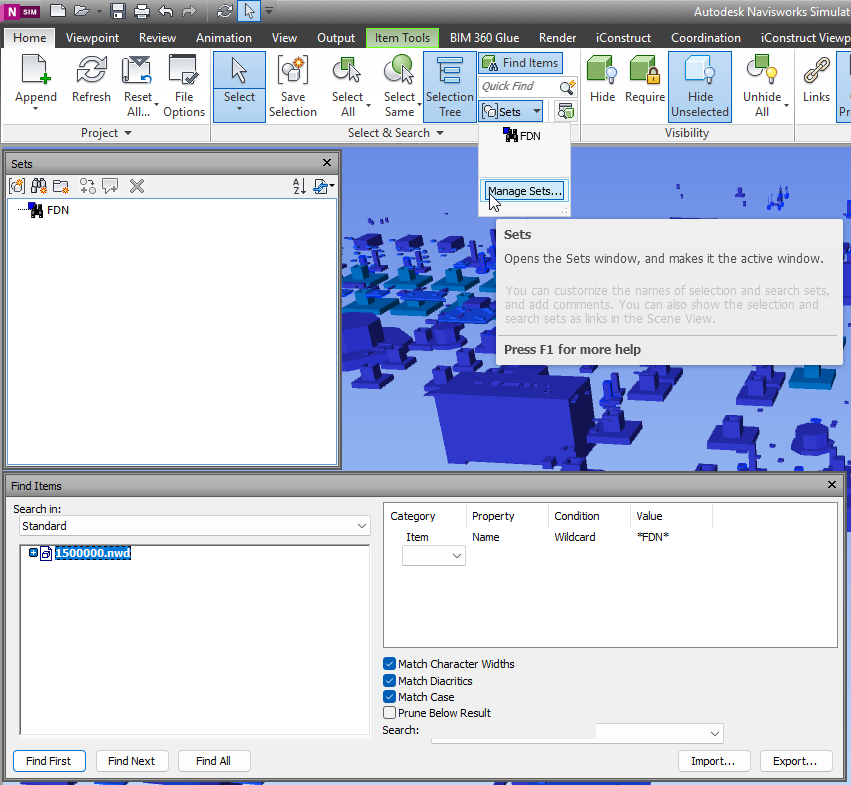
With NavisWorks Simulate and Manage you can use Find Items panel to search across details. Usual flow – is to identify Category and properites which allow to find right element. Then design the query. If query is correct – you can proceed with result, if not you can adjust query. When you query is perfect, and for some reason you may need it again – sets are desinged to help you.
When you get collection of search sets – it might be userfull to export it and use same set with another NavisWorks models. So lets dive deeper it this matter.
Often its’ important to have some code snippets to be able to solve concreate task in NavisWorks via .NET API at C# language. Cause documentations is not always self explanatory. Especially in case COM API. So for Cutting and Section planes in navis samples Bello is able to do the job.
Currently, only COM exposed some small API for sectioning. InwClippingPlaneColl can add the custom clipping plane. But InwClippingPlaneColl.Add method is not supported. This is because the COM wrapper in having to follow the underlying C++ code. You need to use InwClippingPlaneColl2.CreatePlane. It passes in a 1 based index. Default planes will be created as required, up to and including this index. Then you modify the plane that is in the collection directly.
privatevoidcreateSectionPlane() {ComApi.InwOpState10state;state=ComBridge.State; // create a geometry vector as the normal of section planeComApi.InwLUnitVec3fsectionPlaneNormal= (ComApi.InwLUnitVec3f)state.ObjectFactory(Autodesk.Navisworks.Api.Interop.ComApi.nwEObjectType.eObjectType_nwLUnitVec3f,null,null);sectionPlaneNormal.SetValue(1, 1, 0); // create a geometry planeComApi.InwLPlane3fsectionPlane= (ComApi.InwLPlane3f)state.ObjectFactory (Autodesk.Navisworks.Api.Interop.ComApi.nwEObjectType.eObjectType_nwLPlane3f,null,null); //get collection of sectioning planesComApi.InwClippingPlaneColl2clipColl= (ComApi.InwClippingPlaneColl2)state.CurrentView.ClippingPlanes(); // get the count of current sectioning planesintplaneCount=clipColl.Count+1; // create a new sectioning plane // it forces creation of planes up to this index.clipColl.CreatePlane(planeCount); // get the last sectioning plane which are what we createdComApi.InwOaClipPlanecliPlane= (ComApi.InwOaClipPlane)state.CurrentView.ClippingPlanes().Last(); //assign the geometry vector with the planesectionPlane.SetValue(sectionPlaneNormal, 1.0); // ask the sectioning plane uses the new geometry planecliPlane.Plane=sectionPlane; // enable this sectioning planecliPlane.Enabled=true; }
Create NavisWorks Section Box via .Net API
With .Net Api section box might be created as valid JSON object and assign to current View:
First, we need a tool plugin with mouse down Interceptor:
usingAutodesk.Navisworks.Api;usingAutodesk.Navisworks.Api.Plugins; [Plugin("PickModelPointPlugin", "ADSK")]classPickModelPointPlugin : ToolPlugin {publicoverrideboolMouseDown(Viewview, KeyModifiersmodifiers,ushortbutton, intx, inty,doubletimeOffset) { // get current selectionPickItemResultpickedResult=view.PickItemFromPoint(x, y);if (pickedResult!=null) {Autodesk.Navisworks.Api.Point3DclickedPoint=pickedResult.Point; // Sent to static exchange, to make click result available // for Addin Plugins in namespace // convert to custom Point, to reduce coupling. StaticExchange.PickedPoint=newcPoint(clickedPoint.X,clickedPoint.Y,clickedPoint.Z); }returnbase.MouseDown(view, modifiers, button, x, y, timeOffset); } }
First, we need a tool plugin with mouse down Interceptor:
Obviously, we may need to do some actions as soon as user click on something. That`s why event delegate has been presented in StaticExchange. Finally, in our Addin we call A plugin and await for result. In my case it’s a form with buttons, so on a button I bind click handler:
privateasyncvoidbtnPickNavisPoint_Click(objectsender, EventArgse){try { //search for plugin availability ToolPluginRecordtoolPluginRecord= (ToolPluginRecord)ANA.Application.Plugins .FindPlugin("PickModelPointPlugin.ADSK"); //set Plugin for execution ANA.Application.MainDocument.Tool .SetCustomToolPlugin(toolPluginRecord.LoadPlugin()); //Subscribe on eventStaticExchange.PointUpdate+=onPointUpdate; //Patiently wait for resultPoint3Dresult=awaitWaitForUserChoiceAsync();MessageBox.Show("Point: "+"X:"+result.X.ToString("0.##") +" "+"Y:"+result.Y.ToString("0.##") +" "+"Z:"+result.Z.ToString("0.##") +" "); }catch (Exceptionex) {MessageBox.Show(ex.Message); }finally { //Unsubscribe and switch back to Tool.SelectStaticExchange.PointUpdate-=onPointUpdate; ANA.Application.MainDocument.Tool.Value=Tool.Select; } }
And now final peace – where magic is live.
Declare TaskCompletionSource,
Wrap it into WaitUserChoice.
In event handler call Source and pass argument.
privateTaskCompletionSource<Point3D> _userChoiceTcs;privateasyncTask<Point3D> WaitForUserChoiceAsync() { // Create a new TaskCompletionSource for this operation_userChoiceTcs=newTaskCompletionSource<Point3D>();try {Point3Dresult=await_userChoiceTcs.Task;returnresult; }finally { // Clean up_userChoiceTcs=null; } }privatevoidonPointUpdate(PointEventArgsp) { //Here come the user click result_userChoiceTcs?.TrySetResult(newPoint3D(p.Point.X,p.Point.Y,p.Point.Z)); }
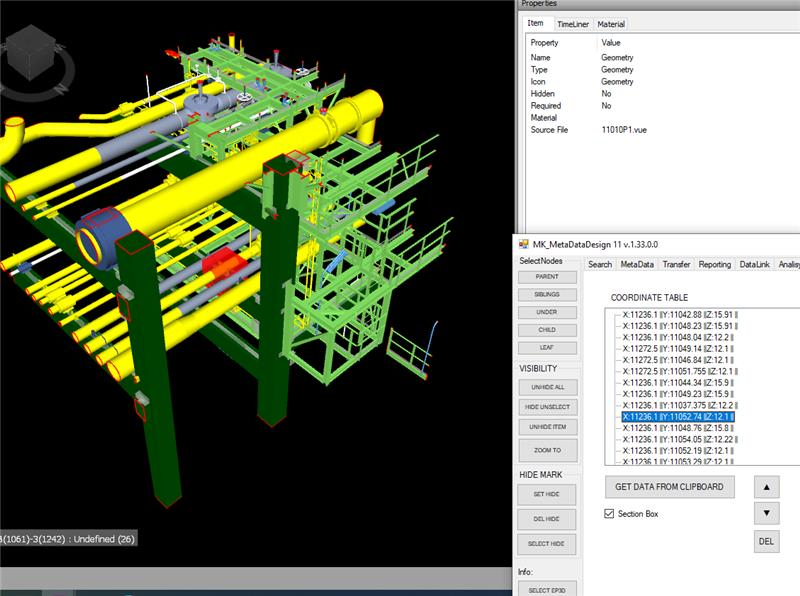
As a result we got message with coordinates of clicked points, as soon as user click on some object.