
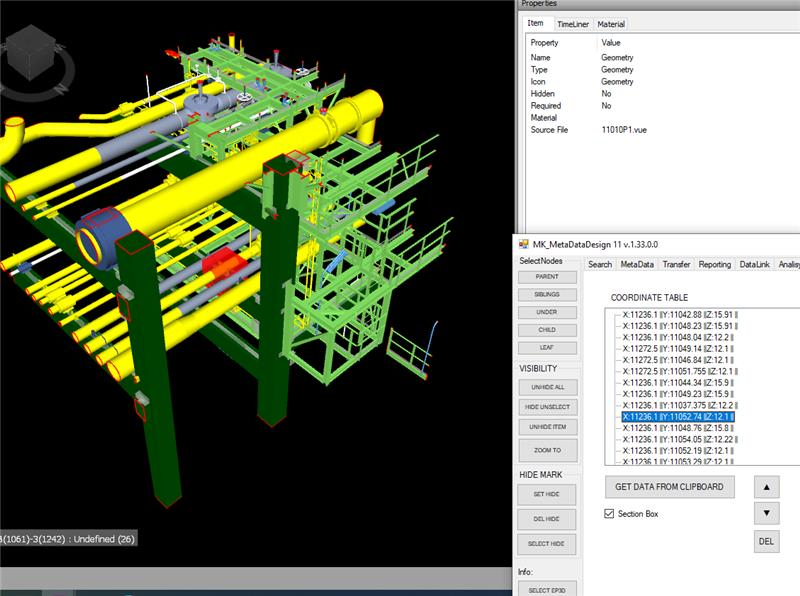
NavisWorks C# Api Sections

NavisWorks C# API Section Tools enable sectioning via c# .Net and COM

Often its’ important to have some code snippets to be able to solve concreate task in NavisWorks via .NET API at C# language. Cause documentations is not always self explanatory. Especially in case COM API. So for Cutting and Section planes in navis samples Bello is able to do the job.

CONTENT

By Xiaodong Liang

Origin was available here: http://adndevblog.typepad.com/aec/2012/08/create-sectioning-plane.html

Currently, only COM exposed some small API for sectioning. InwClippingPlaneColl can add the custom clipping plane. But InwClippingPlaneColl.Add method is not supported. This is because the COM wrapper in having to follow the underlying C++ code.
You need to use InwClippingPlaneColl2.CreatePlane. It passes in a 1 based index. Default planes will be created as required, up to and including this index. Then you modify the plane that is in the collection directly.

        private void createSectionPlane()
        {
            ComApi.InwOpState10 state;
            state = ComBridge.State;

            // create a geometry vector as the normal of section plane
            ComApi.InwLUnitVec3f sectionPlaneNormal =
                (ComApi.InwLUnitVec3f)state.ObjectFactory(
                Autodesk.Navisworks.Api.Interop.ComApi.nwEObjectType.eObjectType_nwLUnitVec3f,
                null,
                null);
            sectionPlaneNormal.SetValue(1, 1, 0);

            // create a geometry plane
            ComApi.InwLPlane3f sectionPlane =
                (ComApi.InwLPlane3f)state.ObjectFactory
                (Autodesk.Navisworks.Api.Interop.ComApi.nwEObjectType.eObjectType_nwLPlane3f,
                null,
                null);

            //get collection of sectioning planes
            ComApi.InwClippingPlaneColl2 clipColl =
                (ComApi.InwClippingPlaneColl2)state.CurrentView.ClippingPlanes();

            // get the count of current sectioning planes
            int planeCount = clipColl.Count + 1;

            // create a new sectioning plane
            // it forces creation of planes up to this index.
            clipColl.CreatePlane(planeCount);

            // get the last sectioning plane which are what we created
            ComApi.InwOaClipPlane cliPlane =
                (ComApi.InwOaClipPlane)state.CurrentView.ClippingPlanes().Last();

            //assign the geometry vector with the plane
            sectionPlane.SetValue(sectionPlaneNormal, 1.0);

            // ask the sectioning plane uses the new geometry plane
            cliPlane.Plane = sectionPlane;

            // enable this sectioning plane
            cliPlane.Enabled = true;
        }

Create NavisWorks Section Box via .Net API

With .Net Api section box might be created as valid JSON object and assign to current View:

private void createSectionPlane(double centerX, double centerY, double CenterZ)
{                                

double halfSize = 5;
string clippingPlanesJson = 
           "{\"Type\": \"ClipPlaneSet\"," +
            "\"Version\":1,\"OrientedBox\":" +
           "{\"Type\":\"OrientedBox3D\"," +
            "\"Version\":1,\"Box\":" +
"[" +
    "[";
clippingPlanesJson += (centerX - halfSize).ToString() + ",";
clippingPlanesJson += (centerY - halfSize).ToString() + ",";
clippingPlanesJson += (centerZ - halfSize).ToString() + 
"],[" +
clippingPlanesJson += (centerX + halfSize).ToString() + ",";
clippingPlanesJson += (centerY + halfSize).ToString() + ",";
clippingPlanesJson += (centerZ + halfSize).ToString() + 
     "]" +
"],";
clippingPlanesJson += "\"Rotation\":[0,0,0]},\"Enabled\":true}";
                                Autodesk.Navisworks.Api.Application.ActiveDocument.ActiveView.SetClippingPlanes(clippingPlanesJson);

Add Sections Planes via Bridge COM

Add Sections Planes via Bridge COM

published att Autodesk Forum by bvgarbar

private void CreateSectionBox(Document doc, DocumentCurrentSelection selection)
{
var currentViewPoint = doc.CurrentViewpoint;
var viewPointValue = currentViewPoint?.Value;
var planes = viewPointValue?.InternalClipPlanes;
if (planes == null) return;

planes.SetMode(LcOaClipPlaneSetMode.eMODE_BOX);
if (planes.GetMode() != LcOaClipPlaneSetMode.eMODE_BOX) return;
BoundingBox3D box = selection.SelectedItems.BoundingBox();
//planes.FitToBox(box);
planes.SetBox(box);
planes.SetEnabled(true);
currentViewPoint.Value.ZoomBox(box);
}

How to create a Table and fill in its cells with .NET

originally this article was available at

https://adndevblog.typepad.com/autocad/2012/05/how-to-create-a-table-and-fill-in-its-cells-with-net.html

But now this source is not available anymore. So this is copy paste from web-archive for my own memory

05/16/2012

How to create a Table and fill in its cells with .NET

By Xiaodong Liang

The code below shows how to create a table and fill in its cells. Some obsolete methods of Table are still visible. You will receive a warning in compiling if using obsolete methods. Please use the newest methods.

[CommandMethod("testaddtable")]
public void testaddtable()
{
    Database  db =
        HostApplicationServices.WorkingDatabase;
 
    using (Transaction tr =
        db.TransactionManager.StartTransaction())
    {
        BlockTable bt =
            (BlockTable)tr.GetObject(db.BlockTableId,
                                    OpenMode.ForRead);
        ObjectId msId =
            bt[BlockTableRecord.ModelSpace];
        BlockTableRecord btr =
            (BlockTableRecord)tr.GetObject(msId,
                                OpenMode.ForWrite);
        // create a table
        Table tb = new Table();
        tb.TableStyle = db.Tablestyle;
        // row number
        Int32 RowsNum = 5;
        // column number
        Int32 ColumnsNum = 5;
        // row height
        double rowheight = 3;
        // column width
        double columnwidth = 20;

        // insert rows and columns
        tb.InsertRows(0, rowheight, RowsNum);
        tb.InsertColumns(0, columnwidth, ColumnsNum);
        tb.SetRowHeight(rowheight);
        tb.SetColumnWidth(columnwidth);

        Point3d eMax = db.Extmax;
        Point3d eMin = db.Extmin;
        double CenterY = (eMax.Y + eMin.Y) * 0.5;
        tb.Position = new Point3d(10, 10, 0);

        // fill in the cell one by one
        for (int i = 0; i < RowsNum; i++)
        {
            for (int j = 0; j < ColumnsNum; j++)
            {
                tb.Cells[i, j].TextHeight =  1;
                if (i == 0 && j == 0)
                    tb.Cells[i, j].TextString =
                        "The Title";
                else
                    tb.Cells[i, j].TextString =
                        i.ToString() + "," + j.ToString();
                tb.Cells[i,j].Alignment =
                    CellAlignment.MiddleCenter;
            }
        }

        tb.GenerateLayout();
        btr.AppendEntity(tb);
        tr.AddNewlyCreatedDBObject(tb, true);
        tr.Commit();
    }
}

BricsCAD – autoload .net app

If you write a plugins in .Net and want to make this app available in BricsCad after startup seems the most reliable way is to add following keys to you Registry:

Windows Registry Editor Version 5.00

[HKEY_LOCAL_MACHINE\SOFTWARE\Bricsys\ObjectDRX\V21x64\Applications\YourApplicationName]
"Loader"="C:\\Temp\\YourAssembly.dll"
"Managed"=dword:00000001
"LoadCtrls"=dword:00000002
"Description"="Your description"
Where LoadCtrls = 2 is loading at startup.


Seems there is not much info about Registry structure details at documentatation but there is some:

https://help.bricsys.com/en-us/document/knowledge-base/installation/bricscad-registry-structure?id=165245343756

and this one is about how to get/set BricsCAD templates and references folders:


https://help.bricsys.com/en-us/document/knowledge-base/installation/when-and-how-is-bricscad-initialized-using-root-folders?id=165245343864

NavisWorks C# Pick Point

Lest deep dive in Autodesk NavisWorks api.

First, we need a tool plugin with mouse down Interceptor:

using Autodesk.Navisworks.Api;
using Autodesk.Navisworks.Api.Plugins;

    [Plugin("PickModelPointPlugin", "ADSK")]
    class PickModelPointPlugin : ToolPlugin
    {
        public override bool MouseDown(View view, KeyModifiers modifiers,
                                         ushort button, int x, int y,
                                         double timeOffset)
        {
                // get current selection
                PickItemResult pickedResult = view.PickItemFromPoint(x, y);

                if (pickedResult != null)
                {
                    Autodesk.Navisworks.Api.Point3D clickedPoint =          
                                                        pickedResult.Point;

                // Sent to static exchange, to make click result available 
                // for Addin Plugins in namespace
                // convert to custom Point, to reduce coupling. 
                StaticExchange.PickedPoint = new cPoint(clickedPoint.X,
                                                        clickedPoint.Y,
                                                        clickedPoint.Z);
                }
            return base.MouseDown(view, modifiers, button, x, y, 
                                  timeOffset);
        }
    }

First, we need a tool plugin with mouse down Interceptor:

   class StaticExchange
    {
        public static event PointDelegate PointUpdate;
        public delegate void PointDelegate(PointEventArgs e);
        private static cPoint point;

        public static cPoint PickedPoint
        {
            get {
                    return point;
                }
            set {
                    point = value;
                    PointUpdate?.Invoke(new PointEventArgs(point));
                }
        }
    }

Obviously, we may need to do some actions as soon as user click on something. That`s why event delegate has been presented in StaticExchange.
Finally, in our Addin we call A plugin and await for result. In my case it’s a form with buttons, so on a button I bind click handler:

private async void btnPickNavisPoint_Click(object sender, EventArgs e)
{
      try { 
            //search for plugin availability 
            ToolPluginRecord toolPluginRecord =                    
                   (ToolPluginRecord)ANA.Application.Plugins
                       .FindPlugin("PickModelPointPlugin.ADSK");
        //set Plugin for execution                                
        ANA.Application.MainDocument.Tool
            .SetCustomToolPlugin(toolPluginRecord.LoadPlugin());
                //Subscribe on event
                StaticExchange.PointUpdate += onPointUpdate; 
                //Patiently wait for result
                Point3D result = await WaitForUserChoiceAsync();

                MessageBox.Show(
                    "Point: "+
                     "X:" + result.X.ToString("0.##") + " " +
                     "Y:" + result.Y.ToString("0.##") + " " +
                     "Z:" + result.Z.ToString("0.##") + " ");
            }
            catch (Exception ex)
            {
                MessageBox.Show(ex.Message);
            }
            finally
            {
                //Unsubscribe and switch back to Tool.Select
                StaticExchange.PointUpdate -= onPointUpdate; 
                ANA.Application.MainDocument.Tool.Value = Tool.Select;
            }
        }

And now final peace – where magic is live.

  1. Declare TaskCompletionSource,
  2. Wrap it into WaitUserChoice.
  3. In event handler call Source and pass argument.
        private TaskCompletionSource<Point3D> _userChoiceTcs;

        private async Task<Point3D> WaitForUserChoiceAsync()
        {
            // Create a new TaskCompletionSource for this operation
            _userChoiceTcs = new TaskCompletionSource<Point3D>();
            try
            {
                Point3D result = await _userChoiceTcs.Task;
                return result;
            }
            finally
            {
                // Clean up
                _userChoiceTcs = null;
            }
        }

        private void onPointUpdate(PointEventArgs p)
        {
            //Here come the user click result
            _userChoiceTcs?.TrySetResult(new Point3D(p.Point.X,
                p.Point.Y,
                p.Point.Z));
        }

As a result we got message with coordinates of clicked points, as soon as user click on some object.