
With NavisWorks Simulate and Manage you can use Find Items panel to search across details. Usual flow – is to identify Category and properites which allow to find right element. Then design the query. If query is correct – you can proceed with result, if not you can adjust query. When you query is perfect, and for some reason you may need it again – sets are desinged to help you.
When you get collection of search sets – it might be userfull to export it and use same set with another NavisWorks models. So lets dive deeper it this matter.
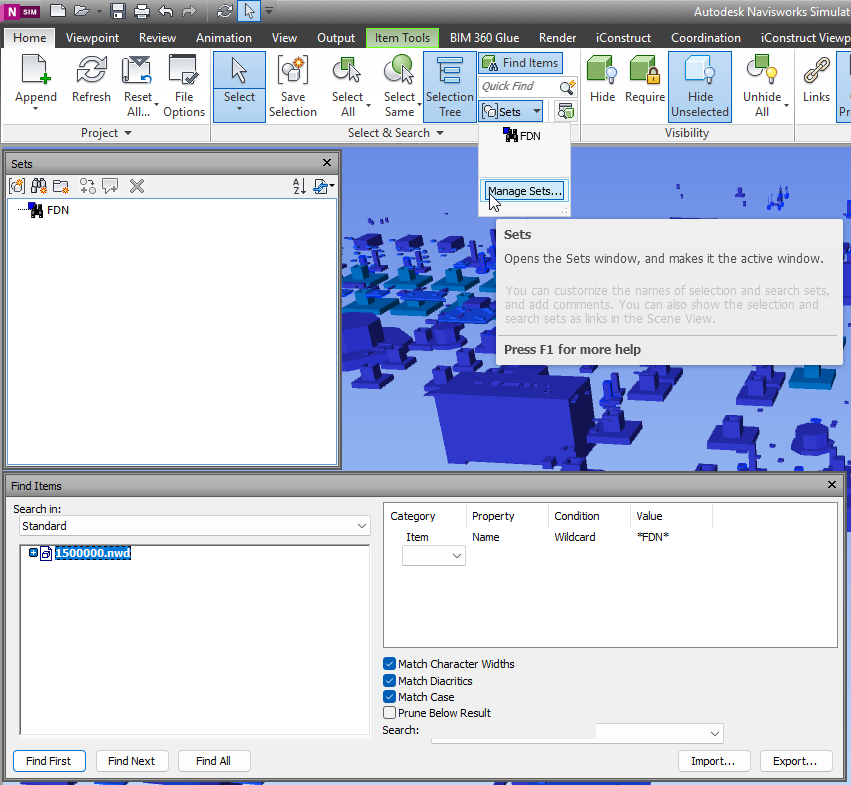
sorry, writing of article in progress, your comments are welcome.
How to use FindItem panel in Navisworks
Find item can be found at Home/Select & Search/ Find Items .

In find items we have several types of options and chekboxes available and hidden in context menus and drop down boxes, but dont worry, in actuall business scenarious only few is in use most of the time
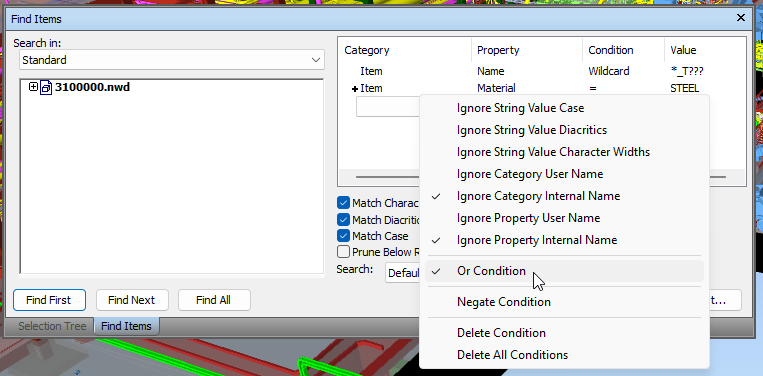
Find items allow to create combinations of conditions for single search. For example you may search for: Item-Name=”Pipe” AND Item-Material=Steel
To make it more difficult we can do thing line – we wanna all pipes with diameters 16 and 18 inches
In this c
How to find item in NavisWorks
Use search set to find any item you may need