
Regular expression is quite underestimated technology in Construction and Engineering world. Mostly cause its looks quite weird, not intuitive, and complicated. But that’s only looks. This article shows how to use it without issues. To do so we limit syntax by few most useful symbols – dot and astricks, and wrap it into brackets. Its easiest way to read, understand and implement for your tasks.
In engineering world searching mostly based on project naming conventions. With regex you can identify that equipment is match with conventions. Check items that do not match with it at all. Setup income data check. Implement rapid fixes.
Regex – its a kind of pattern language. You define pattern value, and engine use it to find anything that much with it. What make it powerful – is Tokens. Your search patten can contains more than one item to search simultaniously, and as soon as it has been found – you can play with that.
With token approach we actually can simplify Regex and use it for very delicate searching.
To simplify regular expresion for sank of clarity we need just a few options
. – dot means single character.
.* – dot and astrix means all characters. All match with this pattern.
() – token, any pattern inside of this brackets will be considerd as separate token in our pattern. (dont worry, you will get it by examples bellow)
(.*) – again means all, but this time we consider this All – as token
(.*)-(.*) – this eyes basically means that I want all before first symbol “-” and after. Which means if value do not have dash – it would be recognized as match to pattern.

(example created with https://regex101.com/ – probably the best tool for Regular expression create and test)
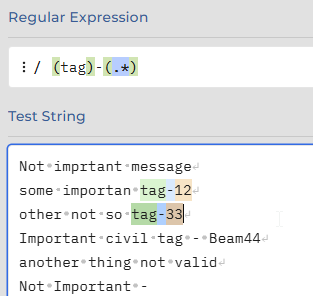
Now from my text I able to identify my [Importatn civil tag] – as my first generic Token, and [Beam44] – as my second generic token.
Lets stick with this approach a bit, we can wrap in token not only special regex character, but any string value as well for example: (tag)-(.*)
Here we got matches where tag is followed by dash, with some value after that.
Basically, thats it. For 90% of searches combination of strings and all (.*) wrapped by token brackets – is more than enough.
You can try it yourself with notepad++ or any other application which supports regular expression. Or text wtih https://regex101.com/
More examples are following:
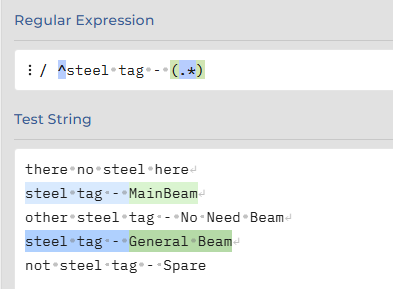
^steel tag – (.*) – where ^ – means beginning of row, so we search only steel at start.

As was mentioned before, dot symbol means single character. Here we search for anything starts with three characters followed by dash symbol
And now we can add some complexity into equation, as I said regular expression with tokens, strings and .* – all is very easy to use, and its covers 90% of business cases
But when you understand this basic, more complex patterns are also become easy to read and use:
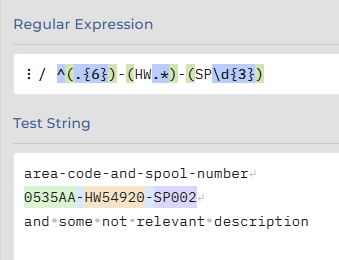
In this example:
^ – start at beginning of row.
.{6} – followed by 6 characters. this equals to …… 6 dots
– followed by dash character
(HW.*) – followed by HW + all after, but!
(SP\d{3})- it shall ends with SP and 3-digit characters (\d – digit, \D – not a digit char)
Now we know how to create Regex patterns, and use it with Regex101.
How to implement this knowledge into regular BIM managers tasks?
First, its already might be available for your application, check documentation.
Another option is to write some extensions or addins or plugin where you can implement regex functionality.
For example for NavisWorks you can utilize MK_MetaData plugin, which allows to create complex report and use Regex for filtering results.